
Online safety and digital hygiene feel like an afterthought until eventually your data leaks online and your socials get compromised. If you’re reusing the same two passwords across all platforms because you find it hard to remember them or prefer to avoid the hassle of managing passwords manually, we get it. But these dedicated password managers have gotten so good over the years, and there are so many options now.
Take 1Password, for example. It markets itself as a premium, security-first choice that you subscribe to long-term and let serve as your default. There’s no gimmick here. Just a polished app with tight encryption and a Secret Key that quietly acts as a second lock on your vault and makes it nearly impossible to brute force.
Quick Overview
| Category | Details |
| Encryption | AES-256 (AES-GCM) with PBKDF2-SHA256(650k iterations) + unique Secret Key |
| Open Source | No |
| 2FA Support | Authenticator apps (TOTP), hardware keys, biometrics |
| Cross-Platform | Windows, macOS, Linux, Android, iOS, & browser extensions |
| Recovery Options | Family organizer recovery, one-time Recovery Code (optional),Emergency Kit (Secret Key + Master Password); no simple reset |
| Offline Access | Yes, full view and edit offline; syncs changes when reconnected |
| Free Plan | None, 14-day free trial available |
| Price | Starts at $2.99/month (billed annually for individual plan) |
This all sounds interesting. But is it still a hassle to manage a third-party password manager? In this review, we’re analyzing 1Password’s security, autofill experience on real devices, useful extras, and whether it’s worth paying for in 2026. Let’s find out.
Pros and Cons
Pros
- Strong encryption with a unique Secret Key for extra protection
- Clean security record; no data breaches to date
- Works on all major platforms, including a native Linux app
- Unlimited device sync on all plans
- Built-in TOTP authenticator and passkey support
- Watchtower alerts for weak, reused, or breached passwords
- Families plan includes account recovery and shared vaults
- Offline access allows full viewing and editing
Cons
- No free plan beyond a 14-day trial
- Closed-source software
- The import process from other managers is a bit clunky
Is 1Password Safe?
On paper, 1Password is one of the most secure password managers out there. Your data is encrypted with AES-256, and your Master Password isn’t the only barrier. It’s combined with a unique Secret Key (34 random characters generated when you create your account). That Secret Key never leaves your devices and adds a unique and proprietary layer of protection. Even if someone stole a copy of your encrypted vault, they’d need both your Master Password and your Secret Key to get in.
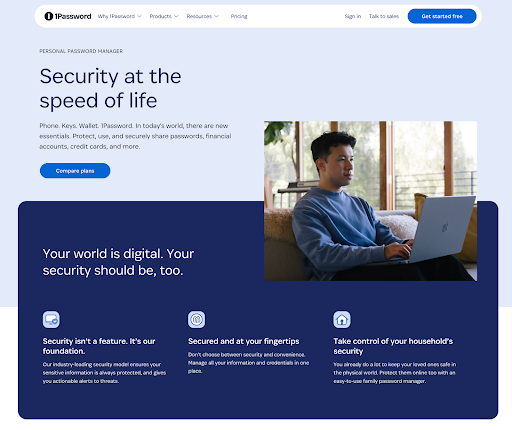
1Password runs your Master Password through 650,000 rounds of PBKDF2-SHA256 hashing before it even touches your vault. That’s a slow process that makes brute-force attacks expensive and time-consuming for hackers. Plus, 1Password uses a zero-knowledge architecture, which means 1Password itself can’t read your vault. All the math to encrypt and decrypt happens on your device.
But what about breaches? 1Password has never had a major security breach. They’ve been around since 2006 and have never leaked customer vault data. Independent security firms audit them, and they hold certifications like SOC 2 Type 2, which is a significant achievement in the industry.
Of course, no system is foolproof. If you set a weak Master Password, reuse it elsewhere, or don’t enable 2FA on your account, you’re creating risk. However, if you follow 1Password’s setup correctly: use a strong Master Password, store the Secret Key safely, and enable 2FA, your vault is as secure as it gets.
Which Devices and Platforms Does 1Password Work On?
1Password works on pretty much every device you would expect it it work on. Your phones, computer, tablet, and even your Apple Watch supports 1Password.
On desktop you get apps for Windows, macOS and Linux. The desktop apps have a unified design and work across all operating systems. For browsers there are extensions for Chrome, Firefox, Safari, Edge and Brave. These let you autofill logins, generate new passwords and save accounts as you go. If you’re on a machine where you can’t install apps you can also use the web-based vault to get to your data in any browser.
On mobile, 1Password has full-featured apps for iOS and Android. These integrate with each OS’s autofill framework so logins pop up in apps and websites as if the system itself was managing your passwords. Moreover, you can use Face ID, Touch ID or your fingerprint instead of typing your long Master Password on a small screen.
Syncing is unlimited across devices. Save a new login on your laptop and it’ll be on your phone in seconds. Unlike services that limit free users to “one device type” 1Password’s subscription gives you cross-device sync without restriction.
Offline access is also supported. Once your vault is synced to a device you can view and edit items without internet. Any changes you make offline will upload the next time you’re connected. That’s more flexible than some competing apps that only allow read-only offline access.
What Else Does 1Password Offer Besides Password Management?
1Password is not limited to being just a filing cabinet for your passwords. Over the years, it has become a complete digital vault with tools to help you protect, share, and monitor sensitive information. Here’s what you get beyond the basics:
Secure Notes & Payment Info
This is your encrypted “everything drawer”. You can store Wi-Fi passwords, recovery codes, software license keys, IDs, credit cards, and bank details. 1Password organizes these entries for you, and on checkout pages, it can autofill card numbers for you.
Password Sharing
With 1Password Families or Business, you can create shared vaults where multiple people can access the same credentials. For one-off sharing, there’s a feature that generates a secure, expiring link you can send to anyone, even if they don’t use 1Password.
Built-in Authenticator
1Password also acts as a TOTP authenticator and generates 6-digit codes that accounts require for two-factor login. So you can keep your password and its 2FA code in one place, and 1Password will autofill the code for you when you log in. However, they recommend you use a separate app for your 1Password account’s own 2FA.
Emergency Access & Recovery Kit
Instead of a direct “trusted contact” system, 1Password gives you an Emergency Kit. It’s a PDF with your account details and Secret Key. Print it, lock it away, and a trusted person can use it with your Master Password if something happens. Families and Business accounts have account recovery, where an organizer or admin can restore access if someone forgets their Master Password. Since 2024, solo users can generate a one-time Recovery Code for themselves. This is a fallback measure for when both the Master Password and Secret Key are lost.
Secure File Storage
Every subscription includes 1GB of encrypted storage per person. You can attach files to items, such as a scan of your passport, medical records, or backup codes. These are encrypted with the same zero-knowledge protection as your passwords, so it’s a safer alternative to tossing sensitive PDFs in Google Drive.
Watchtower
The Security Dashboard (Watchtower) checks for reused or weak passwords, monitors for breached logins on the dark web, and flags accounts missing two-factor authentication. It also shows which of your saved sites now support passkeys and nudges you towards passwordless options where available.
Passkey Support
The future is passwordless. And Passkeys are the next big technology in this space. 1Password is all in. You can create, save, and autofill passkeys across your devices just like regular logins. So logging in with biometrics (Face ID, Windows Hello, etc.) is seamless. No password or OTP required.
Enterprise Benefits
For teams and companies, 1Password scales up with admin controls, SSO integration, Active Directory/Okta sync, role-based access, and detailed audit logs. Businesses can enforce policies (such as requiring 2FA), manage shared vaults, and onboard staff efficiently. Bonus features, such as Travel Mode (which hides selected vaults from your devices when crossing borders), add a security edge for professionals on the move.
Using 1Password Day to Day
1Password positions itself as a premium, enterprise-ready, serious password manager. And a lot of the time, that kind of sass does not translate to good usability. But not here. 1Password is very user-friendly.
Setup & Ease of Use
Getting started is easy but slightly more involved than some competitors.
- You create an account, choose a strong Master Password, and 1Password generates your Secret Key.
- You’re prompted to print or save the Emergency Kit (a PDF with your account info + Secret Key) as part of setup.
- Install the desktop app, browser extension, or mobile app, and you’re good to go.
From there, 1Password starts prompting you to save logins as you browse. Imports from browsers or other managers are possible, but not as slick as some one-click tools. But onboarding is clear, and once your vault has a few logins, the workflow feels natural.
User Interface & Design
1Password 8 has a clean design across all platforms.
- You get a sidebar with vaults and categories and a main pane with entries in the desktop apps. The search bar makes finding things instant, and the browser extension is the same layout in a smaller pop-up.
- The apps on iOS and Android integrate with system autofill and unlock quickly with Face ID or fingerprint. The layout is simple.
- Whether you’re on Windows, Mac, Linux, iOS, or Android, the experience is the same. It’s functional and polished enough that non-technical users won’t feel overwhelmed.
Performance & Reliability
Day-to-day, 1Password integrates seamlessly into your workflow, which is exactly what you want.
- Sync: Changes propagate across devices in seconds. Save a password on your phone, and it’s on your laptop almost instantly.
- Autofill: Works seamlessly on most sites and apps. Occasionally, some web forms will trip it up, but you can tweak entries or copy fields manually if needed.
- Offline mode: If you’re offline, you can still view, add, or edit entries. Everything syncs when you go back online.
- Stability: Apps are solid, extensions update often, and bug fixes roll out fast when issues arise. Resource usage is reasonable even with the new cross-platform build.
How Much Does 1Password Cost? – 1Password Pricing & Plans
1Password got rid of its one-time purchase model years ago. Now it’s a subscription-only service with a clear pricing tier.
Free Trial
There is no free trial. Instead, you get a 14-day free trial with full access to all features. After that, you’ll need to choose a paid plan to keep using it.
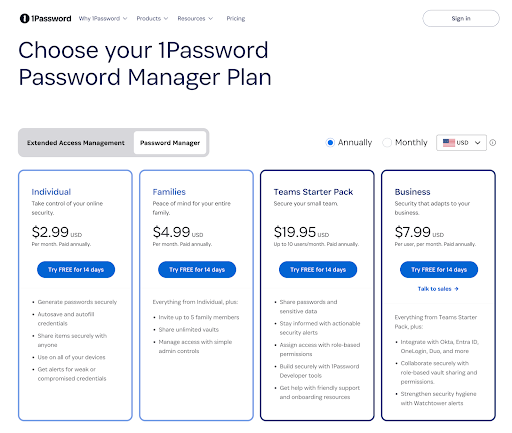
Individual ($3.99/month, $35.88/year)
The basic plan for one user. For around $36 per year, you get:
- Unlimited passwords and vaults
- Unlimited devices (sync across phone, tablet, and computers)
- 1GB of encrypted file storage
- Watchtower breach monitoring
- Built-in TOTP authenticator support
- Passkey storage and autofill
Families ($6.95/month, $59.88/year)
For up to 5 people (you can add more for a small extra fee). Each person gets their own vault, plus shared vaults for household accounts. Key features include:
- All features from the Individual plan are available for every member
- Family organizers who can help with account recovery
- Shared vaults for things like streaming logins or Wi-Fi passwords
- At $60 per year, this is a great value if you want to secure your whole household.
Teams Starter Pack ($24.95/month, $239.40/year for up to 10 users)
For small businesses or workgroups. For a flat yearly fee, you get:
- All features from the Individual plan for each user
- Shared team vaults
- Basic admin controls and user management
Business ($9.99/user/month, $95.88/user/year)
For larger organizations. This plan includes:
- All features from Teams plus advanced admin tools
- Single Sign-On (SSO) integration with identity providers
- Detailed activity logs and audit reports
- 5GB of secure storage per user
- Guest accounts for external sharing
- VIP support and onboarding help
Enterprise (Custom pricing)
For big organizations with unique requirements. Enterprise plans include everything from Business plus a dedicated account manager, custom security reviews, and deeper integrations (like SIEM).
Is 1Password Premium Worth It?
There’s no free plan to fall back on, so you won’t be “upgrading”. So, should you commit to a premium password manager headfirst? Yes. You should.
The unlimited real-time sync across all your devices is not something new or unique. But it’s so fast. Add to that Watchtower alerts, the built-in authenticator, secure file storage, and passkey support. This whole solution is built in a way to improve your habits about personal digital security.
At $35.88 a year for an Individual plan, it’s not the cheapest. Bitwarden Premium blows it out of the water. But you’re paying for a polished and clean password management experience. For families $59.88/year covers up to 5 people. That’s less than $1 per person per month to get everyone off sticky notes and browser autofill. Teams and businesses scale the same value: affordable compared to the cost of a breach.
However, if you absolutely need a free option, 1Password isn’t it. But if you’re serious about digital safety and want something that “just works” across every platform, Premium feels like money well spent.
1Password vs Bitwarden vs LastPass
In the comparison between the three, 1Password is the most polished and trustworthy pick, Bitwarden wins on cost and transparency, while LastPass still struggles with its reputation.
| Feature | 1Password | Bitwarden | LastPass |
| Security | AES-256 + Secret Key, no breaches | AES-256, fully open-source, excellent audits | AES-256, but multiple past breaches |
| Ease of Use | Polished apps, seamless autofill | Functional but less refined UI | Simple enough, but clunky at times |
| Cross-Platform | Windows, macOS, Linux, iOS, Android, browser extensions | Same wide support | Wide support, but Linux via web only |
| Starts at | $35.88/year | $10/year | $36/year |
| Free Plan | None (14-day trial only) | Yes (full core features) | Yes (limited to one device type) |
| Trust Factor | Strong track record, no breaches | Transparent & community-trusted | Trust dented by repeated breaches |
Wrapping Up
1Password delivers precisely what you’d expect from a premium password manager in 2026: airtight security, unlimited sync across all your devices, and a polished experience that doesn’t get in your way. Its Secret Key system and clean track record put it ahead of LastPass, while its design and enterprise-ready features give it an edge over Bitwarden’s bare-bones approach.
The trade-off is cost. At around $36 a year, 1Password is pricier than Bitwarden and lacks a free forever option. But what you’re paying for is peace of mind and polish, a vault that feels effortless to use, and resilient against breaches.
If you’re serious about digital safety and ready to commit to a long-term manager, 1Password is one of the best investments you can make in your online security today.