
Not everyone wants to put their passwords in someone else’s cloud. Enpass goes a different route with password management in this day and age of cloud. It keeps your vault offline, under your control and lets you buy a one-time lifetime license instead of a subscription. This old-school approach appeals to people who want to keep their data off the grid. But can it compete with today’s cloud-based managers? Enpass thinks so, doubling down on a “your data, your rules” philosophy.
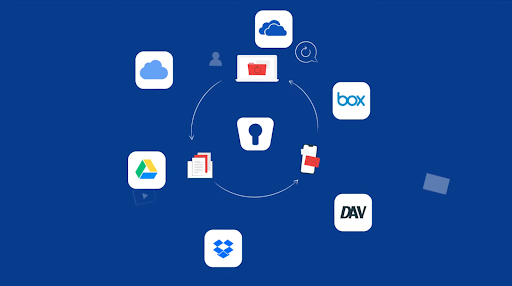
Enpass is a personal vault that lives wherever you want. On your device, in your Google Drive or even your Wi-Fi network. That promise of data sovereignty and the option to buy once and own it forever is what makes Enpass special. Of course, that means Enpass gives up some conveniences (e.g., no cloud account recovery or easy share links here). It’s a trade-off between ultimate control and a bit of DIY. How does that play out in real life? Is Enpass’s security as good as its stance? And is the lifetime license worth it in 2025?
A Quick Overview
| Category | Details |
| Encryption | AES-256 encryption with 320,000 rounds of PBKDF2-HMAC-SHA512 |
| Open Source | No. Closed-source app, but uses open-source SQLCipher for vault encryption |
| 2FA Support | No built-in 2FA for vault login, supports optional Keyfile as a second factor |
| Cross-Platform | Windows, macOS, Linux, iOS, Android, Wear OS & watchOS, browser extensions |
| Recovery Options | No master password reset. Data is unrecoverable if lost. |
| Offline Access | Yes. Full access and editing offline on all devices, data syncs when you reconnect |
| Free Plan | Yes, but limited entires on mobile. |
| Starting Price | $23.99/year, $99.99/lifetime |
Pros and Cons
Pros
- Offline-first vault with no Enpass servers involved
- Strong AES-256 + 320k PBKDF2-HMAC-SHA512 encryption
- One-time lifetime license option
- Supports passkeys and built-in TOTP authenticator
- Flexible sync: iCloud, Google Drive, OneDrive, Dropbox, WebDAV, or Wi-Fi
Cons
- No web vault for browser-only access
- Sharing is clunky compared to competitors
- No master password recovery or emergency access
- Closed-source app code (only the SQLCipher library is open)
Is Enpass Safe?
On paper, Enpass emphasizes security, more so than many cloud-based managers, due to its offline-first approach. Your vault is protected with 256-bit AES encryption, considered unbreakable by brute force. Enpass uses the open-source SQLCipher library to encrypt your data locally, deriving the encryption key from your master password through 320,000 rounds of PBKDF2-HMAC-SHA512 hashing. This surpasses industry standards and makes it extremely difficult for an attacker to guess your master password via brute force. All encryption and decryption occur solely on your device. Enpass never sees raw data, and nothing sensitive leaves your machine unencrypted.
Since Enpass doesn’t store vaults on its servers, the risk of a mass breach is nearly eliminated. There’s no central server for hackers to target; your encrypted data file generally resides on your chosen cloud account or local drive. Even if someone accesses that file, for instance, on Dropbox, they cannot decrypt it without your master password (and Keyfile, if used). Enpass confirmed this design, stating the cloud is merely a storage medium and all cryptography happens on the client side. Essentially, your vault contents are gibberish to anyone without your key.
That said, Enpass isn’t open-source software, so the application code isn’t publicly available for review. Instead, the company has sought to build trust through alternative means, including a third-party security audit. It’s SOC 2 Type II certified and ISO 27001 compliant for its practices. Notably, Enpass has had no known breaches or data leaks since its launch.
Enpass falls short in one security area: two-factor authentication (2FA) for unlocking the vault. There’s no option to require a one-time code or hardware key when opening Enpass. Your master password is the only barrier (besides device biometric unlock). Instead, Enpass offers an optional Keyfile feature. A Keyfile is a random cryptographic file stored separately on your device. When enabled, it’s required alongside your master password to decrypt the vault. You must store the Keyfile yourself. If lost, Enpass can’t recover it. The Keyfile method works, but it’s less user-friendly than app-based 2FA codes or push notifications. However, Enpass does warn you about logins supporting 2FA, so you can secure those accounts even if the vault doesn’t have 2FA enabled for unlocking.
Beyond encryption, Enpass offers additional security features, including biometric unlock on mobile and desktop (e.g, Touch ID, Face ID, and Windows Hello), so you don’t have to type your master password frequently. It’s a zero-knowledge architecture. Enpass doesn’t host your data, and even if you subscribe to their services, they never know your master password or keys.
So, to sum it all up, Enpass is safe to use if you manage your data responsibly to begin with. There’s no account recovery or emergency access, so you need to handle your master password and Keyfile securely. If you’re comfortable with that, Enpass’s security is solid. It’s a different threat model from cloud managers: the biggest risk with Enpass is likely losing your password or misconfiguring your sync setup, not a server breach or insider leak. Many will find that tradeoff worthwhile.
Which devices and platforms does Enpass work on?
Desktop & Web
Get native apps for Windows, macOS, and Linux. The interface is clean and familiar, featuring a sidebar for vaults and categories, a search bar at the top, and details on the right. You won’t find a web vault that you can log into from any browser, but that’s intentional. Your vault isn’t stored on Enpass’s servers. For portability on shared machines, there’s a portable desktop version that you can keep on a USB drive and run without installing.
Mobile
Enpass offers iOS and Android apps that integrate with system autofill frameworks, so your logins appear inside apps and browsers after Face ID or fingerprint authentication. You can add, edit, and organize items on your phone just as you can on the desktop. Biometric unlock and a PIN keep you from having to type a long master password every time.
Browser Extensions
Extensions are available for Chrome, Edge, Firefox, Safari, Brave, Vivaldi, and Opera. They handle suggestions, one-click autofill, password capture, and on-the-spot generation. The extension communicates with the desktop app locally, so if the vault is locked, you’ll be prompted to unlock it on your computer and continue.
Wearables
There are companion apps for Apple Watch and Wear OS. Mark selected items as watch-safe, and you’ll be able to quickly view things like door codes or TOTP codes on your wrist. On Mac, you can also approve desktop unlocks with Apple Watch.
Offline Access & Sync
Offline access is top-notch. Once your vault is on a device, you can view and edit it without an internet connection. For sync, you choose the method: your own cloud (iCloud, Google Drive, OneDrive, Dropbox, WebDAV/Nextcloud) or local Wi-Fi sync that never touches the internet. Multiple vaults are supported, and each vault can use a different sync target if you want to keep work and personal data separate.
What else does Enpass offer besides password management?
Enpass is a complete offline vault where you can stash anything sensitive and keep it under the same encryption umbrella. The features don’t go into gimmicky territory like VPNs or identity monitoring, but they cover most of what you’d use daily.
Secure notes & sensitive data
The vault supports more than usernames and passwords. You can add credit cards, bank accounts, license keys, government IDs, addresses, Wi-Fi credentials, and free-form notes. Enpass comes with pre-made templates for many of these, so your card number, PIN, or passport expiry don’t just sit in a blob of text. Attachments are supported, too, so you can encrypt a scan of your passport or a recovery code and have it follow you across devices.
Password generator
Enpass has a customizable generator built in. You can make long random strings, pronounceable passphrases, or adjust character sets depending on what a site requires. It’s available in the app and through the browser extension, so whether you’re signing up for a new service on desktop or mobile, a strong password is a couple of clicks away.
Security audit
Keeping hundreds of logins safe isn’t just about storage. The built-in password health checker runs through your vault to highlight weak, old, or reused credentials. It also checks your logins against known breach databases and flags any that have been exposed. On top of that, it tells you which accounts support two-factor authentication but don’t have it enabled yet, nudging you to lock them down.
Built-in authenticator
Enpass can replace your Google Authenticator or Authy. It stores TOTP seeds and generates the rotating six-digit codes directly inside the vault. Better still, autofill can handle both the password and the one-time code in one shot, so you log in without switching between apps.
Password sharing
Because Enpass is offline-first, sharing looks different here. You can export an item in an encrypted format protected by a pre-shared key, or set up a shared vault that syncs through your chosen cloud or Wi-Fi with family or teammates. It’s secure and flexible, but not as one-click simple as cloud-based managers that email expiring links.
Passkey support
Enpass already supports passkeys, the new passwordless standard from Apple, Google, and Microsoft. You can register, store, and autofill passkeys just like regular logins. If you’re syncing your vault, those passkeys are available across your devices just like any other credential.
Family & business features
On the Family plan, up to six members can have their own vaults plus shared ones for things like streaming logins or home Wi-Fi. The Business tiers go further with an admin console, role-based access, SSO integration, and activity logs. The vaults still live in your own storage, so even in enterprise use, Enpass doesn’t hold your data.
Using Enpass Day-to-Day
Enpass may be “offline-first,” but once you’re set up, it feels surprisingly normal. Daily use is more like Bitwarden or 1Password than an old-school KeePass file manager. The difference is mostly invisible. You can still autofill, generate passwords, and receive reminders to clean up weak logins, except that you know the vault is entirely under your control.
Setup & Ease of Use
Getting started doesn’t mean creating an online account. You install the app, set a master password, and choose where the vault will live. Your device, Dropbox, iCloud, OneDrive, WebDAV, or Wi-Fi sync. That step is unique to Enpass, but once it’s done, the experience is straightforward. Imports are smooth too: Enpass supports exports from LastPass, 1Password, Bitwarden, RoboForm, and more, so migrating isn’t a headache.
On mobile, the free plan limits you to 25 items, so most users upgrade quickly, but the upgrade is seamless. Simply register your license, and the apps will be unlocked.
User interface & design
Enpass is clean and utilitarian. Desktop apps have a three-pane layout (vaults on the side, items in the middle, details on the right) while mobile apps condense that into a single-column view. It’s not flashy, but it’s consistent across platforms and quick to navigate. Search is fast, categories and tags help with organisation, and you can mark favourites for quick access. Biometric unlock (Face ID, Touch ID, Windows Hello, Android fingerprint) saves you from retyping your master password all the time. There’s also dark mode, custom templates, and icons for hundreds of sites.
Performance & reliability
Because everything is local, Enpass feels snappy. Autofill works smoothly in browsers and apps: click the extension or tap the prompt, authenticate with biometrics, and your credentials will drop in instantly. On trickier login forms, you can manually select the right item, but most common sites are recognized correctly. Sync is reliable whether you’re using Dropbox, Google Drive, iCloud, or Wi-Fi. Even if sync fails, your local vault is always accessible offline. Nothing locks you out. The apps are lightweight and rarely crash, updates roll out regularly, and the browser extensions integrate smoothly with the desktop apps.
How Much Does Enpass Cost? – Enpass Pricing & Plans
You can unlock Premium for under $25 a year, or cover your whole household with a Family plan. Where it gets interesting is on the business side. Enpass is one of the cheapest ways to roll out a team password manager without handing over your vaults to a third-party cloud.
Free Plan
- Desktop: Unlimited vaults, items, and devices.
- Mobile: Limited to 25 items per vault. Good for testing, not for real use.
- Features: Includes core essentials like autofill, password generator, and sync (via your own cloud). Premium-only features like breach alerts, attachments, and advanced templates are locked.
Individual Plan
- Price: $23.99/year (billed annually).
- What you get: Unlimited items, vaults, and devices, breach monitoring, TOTP support, file attachments, custom templates, dark mode, priority support.
Family Plan
- Price: $35.99 for the first 12 months, then $47.99/year.
- What you get: Up to six users under one subscription. Each gets private vaults plus shared ones for common logins. A family organizer can add/remove members and help with recovery.
One-Time License
- Price: $99.99 one-time per individual.
- What you get: Lifetime Premium (individual) on all devices, including updates. Break-even is roughly four years compared to the subscription.
Business plans
Enpass pitches its business offering to small and mid-sized teams that want enterprise-grade security without cloud lock-in. Every plan lets you sync vaults through your existing cloud (Microsoft 365, Google Workspace, Dropbox, or WebDAV/Nextcloud) or via local Wi-Fi servers. Admins get a central console for management.
Starter Plan
- $9.99/month flat (covers up to 10 users).
- Good for small teams who want simple pricing without per-seat billing.
- Includes unlimited vaults, policy enforcement and the admin console.
Standard Plan
- $1.99 per user/month, billed annually.
- Scales beyond 10 users.
- Adds centralized vault sharing, group management and recovery options. Integrates with Microsoft 365 or Google Workspace for cloud storage.
Enterprise Plan:
- Custom pricing based on seats and requirements.
- Adds features like SSO (Azure AD/Okta), SCIM provisioning for automated user management, audit logs, and Travel Mode (hide selected vaults when traveling).
- Dedicated account manager and enterprise support included.
Business users get the same security as individuals (AES-256, PBKDF2, SQLCipher) plus organizational features to manage credentials at scale. Where competitors like 1Password and Dashlane charge $4-8 per user/month, Enpass is much cheaper while still letting companies keep their vaults on their own servers.
Is Enpass Premium Worth It?
Enpass Premium is very inexpensive compared to most other password managers. That alone makes it worth it. But it also has to be the right fit for you.
Offline-first, privacy-focused users
This is Enpass’s core audience. If you shudder at the idea of storing your vault on someone else’s server, Enpass is absolutely worth it. You get full control without sacrificing usability. The one-time license option seals the deal. You can essentially own your password manager and ensure your data never leaves your network.
Cross-device power users
If you use multiple computers and mobile devices, Enpass Premium is practically necessary (because of the mobile limit on the free version). Is it worth it here? Yes. Enpass handles multi-device sync excellently, provided you’re okay with using a cloud of your choice or setting up Wi-Fi sync. You’ll enjoy unlimited devices on one account, which some freemium competitors don’t allow. The value is terrific as long as you’re willing to configure sync once.
DIY Self-hosters
If you already run your own Nextcloud or have a NAS at home, Enpass is highly appealing. It plugs right into those. You can self-host your vault with WebDAV. Enpass Premium is worth it because it gives you polished apps and autofill, while still leveraging your existing infrastructure. This is something you can’t do with most other mainstream managers (they don’t let you choose arbitrary storage locations easily). So for the people who trust their own setups more than third-party clouds, paying for Enpass is almost a no-brainer.
For families
Enpass Family plan’s price speaks for itself. It’s one of the cheapest around for 5-6 users. It’s worth it if your family is on board with the concept of password management and (importantly) if they’ll be comfortable with Enpass’s slightly more manual nature. The trade-off is a lack of certain family features, like easy sharing links or emergency access. If those are crucial, a family might lean toward 1Password Families despite the higher cost.
For business teams
Small businesses on a budget will find Enpass very attractive. Premium (via the Business plans) provides the features a team needs at a fraction of competitors’ cost. It’s worth it, especially if your business already uses Microsoft 365 or Google Workspace and you like the idea of keeping password data within that ecosystem.
However, larger enterprises or those who want fully managed services might hesitate. Enpass’s model requires the business to use its own storage and infrastructure in part. If a company doesn’t mind that (or sees it as a benefit), Enpass Business is absolutely worth it. And given Enpass’s SOC 2 compliance and feature set, we’d say it’s worth strong consideration. It’s especially fitting for businesses dealing with sensitive data that cannot afford to trust a third-party cloud with vaults.
If you’re someone who doesn’t want to worry about recurring fees and doesn’t mind handling your own data sync, Enpass will feel like money well spent. On the other hand, if you prefer an experience where everything is dealt with in the cloud and you just log in and go (and you’re willing to pay more for it), then Enpass might not be your cup of tea.
Enpass vs RoboForm vs Bitwarden
| Feature | Enpass | RoboForm | Bitwarden |
| Security | AES-256, PBKDF2-SHA512 (320k rounds) | AES-256, PBKDF2-SHA256 | AES-256, PBKDF2 (100k+) |
| Ease of use | Simple apps, but initial sync setup required. Sharing is manual. | Very straightforward; excels at form-filling. Interface feels dated. | Clean but utilitarian UI. Easy cloud sync; self-hosting option for advanced users. |
| Platforms | Windows, macOS, Linux, iOS, Android, Apple Watch, Wear OS, browser extensions. | Windows, macOS, iOS, Android, browser extensions, web vault. | Windows, macOS, Linux, iOS, Android, browser extensions, web vault. |
| Free plan | Unlimited on desktop, 25 items on mobile. | Unlimited passwords on one device (no sync). | Unlimited passwords, unlimited devices, sync included. |
| Pricing | Starts at $23.99/year individual, $99.99 lifetime. | Starts at $29.88/year individual, | Free core plan. Premium $10/year, Family $40/year (6 users). |
| Trust factor | No breaches, but closed-source. Full control stays with user. | 20+ years without breaches. Proprietary, not open source. | Open-source, audited, transparent. Strong community trust. |
Takeaways
- Enpass is best if you want offline control and a lifetime license. It’s secure, affordable, and flexible, but requires a bit more setup and DIY sharing.
- RoboForm remains a budget pick with strong form-filling and rock-bottom subscription pricing. It’s easy to use, though it feels a bit old-fashioned.
- Bitwarden is the go-to for those who want free, open-source transparency. It’s cloud-first and community-trusted, with the option to self-host for advanced users.
Wrapping Up
Enpass gives you something rare in 2025: a password manager that feels like it’s yours. It’s a breath of fresh air compared to cloud-based service. It’s giving you security without demanding your data on its servers. Enpass has a powerful trust model, and they back it up with strong encryption, a clean security record, and modern features like passkey and biometric support.
Of course, there are trade-offs. Enpass won’t spoon-feed you instant cloud access on every new device; you take a minute to set up a sync. It won’t magically let a friend into your vault if you’re incapacitated; you have to plan for that yourself. And it won’t win awards for fanciest UI. In exchange, you get a solution that’s fast, reliable, and incredibly cheap. Enpass is the quiet achiever of the password manager world.
After our deep dive, we can confidently say Enpass is one of the best in 2025 for those who are serious about security and tired of subscriptions.