
People have certain bare minimum expectations when it comes to modern password managers. It needs to have strong security, a modern, polished UI, and cloud sync services. And most password managers offer just that. But KeePass has a different approach altogether.
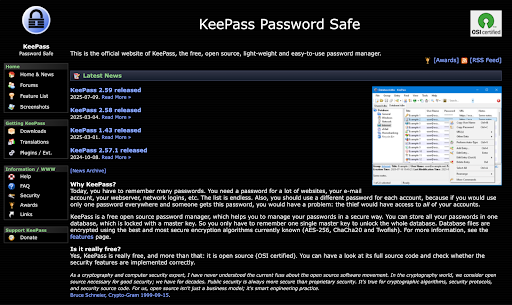
KeePass is a veteran password manager that has been around for over 20 years. It’s an open-source offline vault for passwords, secure notes, and files. This is a very old-school approach to password management, and one that might be safer, as your data never reaches some random cloud. At the same time, a lack of built-in sync and autofill might be a big drawback for some people.
A Quick Overview
| Category | Details |
| Encryption | AES-256 (CBC). Optional ChaCha20. KDF: AES-KDF or Argon2id. |
| Open Source | Yes. GPL. |
| 2FA Support | No native unlock 2FA. Key file supported. YubiKey via plugin. |
| Cross-Platform | Windows, macOS, Linux. iOS, Android |
| Recovery Options | None. If you lose the master password/key file, your access is gone. |
| Offline Access | Yes. Local vault by default. No auto sync. |
| Free Plan | Yes. Fully free. |
| Price | $0 |
Are you okay trading off convenience for transparency and control? Let’s discuss more about KeePass’s security, features, and day-to-day usability before you answer that question.
Pros and Cons
Pros
- Free and open source with no hidden tiers
- Strong encryption
- No reliance on cloud servers
- Highly customizable with 100+ plugins and forks
- Works across almost every platform via community apps
- Lightweight, stable, and fast, even with large vaults
Cons
- Outdated UI in the official Windows client
- No built-in sync, sharing, or recovery options
- Steeper learning curve than cloud managers
- Plugin quality and support vary; requires user diligence
Is KeePass Safe?
Yes, KeePass is safe. It uses industry-standard encryption, is fully open source, and has no history of vault breaches. But like any tool, its safety depends not only on its design but also on how you use it, and that’s where the arguments for and against start to emerge.
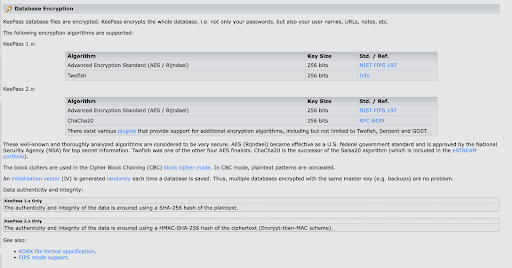
KeePass encrypts everything in your vault with AES-256 in CBC mode, the same cipher trusted by governments and banks. You can also switch to ChaCha20 or Twofish if you want to get fancy. For key derivation, it supports AES-KDF or Argon2id, both designed to slow down brute-force cracking. In practice, this means even if an attacker got your database file, they’d face years before making a dent, provided you chose a strong master password.
Being open source adds another layer of trust. The code has been available for inspection for two decades, and hundreds of forks, ports, and plugins have reused and tested the format. That level of scrutiny makes it unlikely for a major backdoor or glaring vulnerability to slip by unnoticed. Even KeePassXC, a popular fork of KeePass, underwent a third-party audit that confirmed its cryptography was solid.
KeePass also benefits from its design choice: it stores your vault locally. There are no KeePass servers holding millions of databases waiting to be breached. The only way someone gets your data is if they compromise your own device or storage.
KeePass has no password recovery, no emergency contact, and no server to reset anything. Forget your master password or lose your key file, and your vault is gone for good. That’s security by design, but for forgetful humans, it can be unforgiving. Where 1Password offers account recovery options, KeePass simply locks the door forever.
Plugins are a double-edged sword. They make KeePass super flexible. You can add browser autofill, OTP generation, and even YubiKey support. But each plugin is its own piece of code you have to trust. Install from shady sources or fail to update, and you could compromise the very safety KeePass is supposed to provide. The core program is good, but the plugin ecosystem is decentralized, so you’re on your own.
And then there’s the fact that local storage shifts the burden of security onto the user. If your device is infected with malware, KeePass can’t save you; a keylogger will happily grab your master password as you type it in. Cloud services at least can sometimes flag unusual activity or lock accounts.
Audit coverage is also less comprehensive than that of some competitors. Bitwarden and 1Password get audited by third parties regularly; KeePass proper has not. That doesn’t mean it’s unsafe. Its open-source nature is a kind of continuous audit. But some organizations prefer the formal guarantees that commercial vendors pay for.
So, is KeePass safe? Yes, very secure if you’re careful. Its crypto is solid, its record is clean, and its offline model minimizes systemic risk. But safety isn’t automatic. You have to choose a strong master password, secure your devices, manage backups, and vet plugins. For power users and privacy enthusiasts, this is a feature: complete control with no compromises. For casual users, it’s a liability. The tool is only as safe as your habits.
Which Devices and Platforms Does KeePass Work On?
KeePass is everywhere and nowhere at the same time. Officially, it only exists as a Windows program. In practice, it’s become an ecosystem: dozens of ports, forks, and apps built on the same database format. That’s both its strength and weakness.
Desktop & Web
On Windows, the official KeePass 2.x client is the real deal. It’s free, updated, and stable, though the UI looks like it came straight from Windows XP.
If you’re on macOS or Linux, you’ll want KeePassXC, the most popular community fork. It’s cross-platform, actively maintained, and adds modern touches like TOTP generation and password health checks.
There’s also KeeWeb, a web app and desktop wrapper that can open your database directly in the browser without sending it anywhere. It’s useful if you’re on ChromeOS or can’t install software.
Mobile
KeePass does not have an official mobile app, but third-party options are excellent.
On Android, KeePass2Android and KeePassDX both support Autofill, fingerprint unlock, and direct cloud access (Google Drive, Dropbox, etc.).
On iOS, the go-to apps are KeePassium and Strongbox. Both integrate with iOS AutoFill and Face ID; KeePassium is fully open source, while Strongbox offers extra polish with a freemium model. They all read the same .kdbx files, so switching between them is seamless.
Browser Extensions
There’s no one-click “official” extension, but you have solid choices. KeePassXC-Browser works with KeePassXC on desktop and gives you autofill in Chrome, Firefox, and Edge. If you prefer the classic KeePass on Windows, the Kee extension plus the KeePassRPC plugin achieves the same thing. You can also fall back on Auto-Type, KeePass’s built-in hotkey feature that simulates keystrokes into any login form.
Wearables
Support here is limited. Strongbox has an Apple Watch app that can show selected entries or one-time codes. Beyond that, wearables aren’t really part of the KeePass world. If you want quick access to OTP codes on your wrist, Strongbox Premium is your only real option.
Offline Access & Sync
KeePass is offline by default: the vault is just a file on your device. Syncing it across machines is up to you. The easiest way is to drop it in a cloud service like Dropbox, OneDrive, or iCloud, which all work fine since the database is encrypted. KeePass can also merge changes if edits happen on different devices, though conflict handling takes some manual effort. For those who want complete control, USB transfer, network drives, or even self-hosted Nextcloud are all options.
What Else Does KeePass Do Besides Passwords?
Because it’s open source and plugin-friendly, KeePass is a general-purpose, secure database that can be tailored to meet your specific needs. The core features cover the basics, but most of the fun stuff comes from plugins and community forks.
Secure Notes & File Attachments
Every entry in KeePass has a notes field for storing things like recovery phrases, bank details, or software keys. You can also attach files, such as scans of passports, PDFs with backup codes, or any other small document. Everything is encrypted inside the database so that KeePass can be your personal safe.
Password Generator
KeePass’s generator is more flexible than most. You can generate long random strings, pattern-based passwords, or even diceware-style passphrases. Profiles let you save your settings, so you don’t have to toggle checkboxes every time you need a new password.
Two-Factor Codes (TOTP)
While KeePass itself doesn’t generate one-time codes, many forks and plugins do. KeePassXC, KeePassium, and Strongbox can store and create TOTPs directly in your entries. This lets you store a password and its 2FA code in one place. For hardware, plugins like KeeChallenge add YubiKey challenge-response support, so your YubiKey can become a part of the master key.
Password Auditing
KeePass has a basic strength meter on its own, but forks like KeePassXC have “health check” tools to find duplicates, weak passwords, or empty fields. Strongbox Premium even integrates with Have I Been Pwned to check against breached passwords. Plugins exist for the Windows client to run similar checks.
Plugins & Customization
The plugin ecosystem is where KeePass becomes a Swiss Army knife. There are add-ons for browser integration (Kee, KeePassXC-Browser), cloud sync, SSH agent support, advanced search, automatic backups, and more. Over 100 plugins exist, each doing something different. It’s a modular design: you only add what you need.
Sharing & Team Use
KeePass doesn’t have built-in sharing like 1Password or Bitwarden. Instead, you can share the entire database file or use plugins like KeeShare to sync selected groups across vaults. Families or small teams often keep a shared .kdbx on Dropbox or a network drive. It works, but it’s nowhere near as lovely as cloud-based family plans.
Passkeys & New Standards
KeePass hasn’t implemented passkeys (WebAuthn/FIDO2). Some forks are experimenting with storing them as items, but you can’t register KeePass itself as a passkey authenticator. For now, it’s still a password-first manager with TOTP add-ons.
Using KeePass Daily
KeePass is not the kind of manager that melts into your workflow the second you install it. Instead, it provides you with the tools, requires you to do some work, and rewards you with a fast, reliable, and entirely under your control setup once configured.
Setup & Ease of Use
The initial steps seem old-fashioned.
On Windows, you download the installer or portable version, run it, and create a new database file with a master password. You can also add a key file for extra security.
On macOS or Linux, most people go directly for KeePassXC, which works the same way but features a cleaner UI. Importing existing logins is possible but more cumbersome than with cloud managers, usually involving a CSV export from your old tool and some manual cleanup.
On mobile, you get a KeePass-compatible app like KeePassium on iOS or KeePass2Android on Android. Then you direct the app to your .kdbx database stored in Dropbox, iCloud, Google Drive, or even a local folder.
There’s no account, no onboarding wizard, no recovery email. Just your vault. The independence is nice, but for newcomers, it can feel like setting up furniture without instructions.
User Interface & Design
The official KeePass for Windows still looks like it belongs in the Windows XP era: a split view with groups on the left and entries on the right, topped with dated toolbar icons. It’s functional but not welcoming.
- KeePassXC brings it closer to modern expectations with a sidebar, dark mode, and built-in password health tools.
- On iOS, KeePassium and Strongbox feel much more polished with Face ID, autofill in Safari, and clean navigation that would fit in beside 1Password or Bitwarden.
- Android clients, such as KeePass2Android and KeePassDX, do the same, integrating with the system’s Autofill API.
The variety is both a strength and a weakness: you can choose the interface you like, but features and polish vary depending on which client you’re using. None of them aim for “flashy”. KeePass tools focus on substance over style, which longtime users appreciate, but casual ones might find boring.
Performance & Reliability
Performance is where KeePass really shines.
- Unlocking your vault takes a second or two, depending on your Argon2 or AES-KDF settings, and searching through thousands of entries is instant.
- The database format is efficient, so even a vault with hundreds of attachments stays compact and fast.
- Browser autofill works well once configured. KeePassXC-Browser and the Kee extension can fill most login forms.
- The fallback Auto-Type feature is surprisingly powerful as well, and can fill in almost any window or form with a single hotkey.
- Syncing depends on the method you choose. Dropbox, Google Drive, or iCloud works fine, but please do not edit the database on two devices simultaneously.
- KeePass can merge changes, but conflict handling requires some awareness.
- Your vault never depends on a server’s uptime, subscription renewals, or an API outage. It’s a file you can always open.
How Much Does KeePass Cost? – KeePass Pricing
KeePass is one of the few password managers that’s truly free. No subscription, no tiers, no features behind a paywall. You download the program, set up your vault, and you’re good to go, which is great if you’re tired of paying $30–50 a year just to keep your logins secure.
Because it’s open source, there’s no marketing funnel to upgrade. The official Windows client has been free from the start, and it will always stay free. You’re not paying for servers because KeePass doesn’t use them; the database is local, so there’s no infrastructure cost passed on to you.
That said, the wider KeePass ecosystem includes forks and plugins, some of which offer premium features. Mobile apps like Strongbox or KeePassium may charge for convenience features. But the core KeePass itself? Always free.
Is KeePass Worth It?
Yes, KeePass is worth it. It’s secure, free, and has a spotless record. The question is, are you willing to make the trade-offs?
If control is your priority, KeePass is hard to beat. The vault lives on your device, the code is open source, so anyone can inspect it, and no company can lock you out or mishandle your data. That kind of independence is rare among password managers.
KeePass also shines if you like to shape tools to fit your workflow. The plugin ecosystem covers everything from browser autofill to OTP codes and SSH keys. You can build a setup that rivals or surpasses paid services, but you’ll be the one doing the setup.
Where it falls short is convenience. Syncing, sharing, and recovery aren’t built in. You can make them work, but it takes more effort than with cloud managers. For families and larger teams, the lack of polished sharing and account recovery can be a deal breaker.
In the end, KeePass is worth it for anyone who wants maximum security and transparency without paying a subscription. If you’d rather trade some control for a smoother experience, you’ll be happier with a service like Bitwarden or 1Password.
KeePass vs Bitwarden vs RoboForm
| Feature | KeePass | Bitwarden | RoboForm |
| Security | AES-256, Argon2/AES-KDF, local vault, open source | AES-256, PBKDF2/Argon2, open source, zero-knowledge | AES-256, proprietary, audited, cloud-based |
| Ease of Use | Manual setup, dated UI, plugins needed | Simple account setup, polished apps | Very user-friendly, strong form-filling |
| Platforms | Windows + community apps for Mac, Linux, iOS, Android | Native apps on all major OS + browsers | Windows, macOS, iOS, Android, major browsers |
| Sync | Manual (cloud folder, USB, NAS) | Automatic cloud sync | Automatic cloud sync |
| Sharing | Database sharing only, clunky | Item and vault sharing, family plan | Easy sharing, family plan |
| Price | Free | Free plan & $10/year premium | Free plan & $19.95/year premium |
Takeaways
- KeePass is unbeatable on price and control, but demands more effort.
- Bitwarden balances strong security with ease of use, making it the best middle ground.
- RoboForm is the simplest option, but you trade transparency for convenience.
Wrapping Up
KeePass in 2025 is the odd one out among password managers. It doesn’t rely on slick design or subscription revenue. It simply provides a secure vault that you control. That makes it one of the safest, most transparent options out there, but also one of the least forgiving. You’ll have to handle your own sync, your own backups, and your own learning curve.
For those who value independence and don’t mind putting in the work, KeePass is a great choice that has stood the test of time. For anyone who wants a smooth, polished experience with minimal effort, cloud-based managers like Bitwarden or 1Password will be a better fit.
KeePass isn’t trying to be all things to all people. It’s the password manager for those who want a tool, not a service. And in that niche, it’s unbeatable.